
Creating a New Flight Plan
September 8, 2026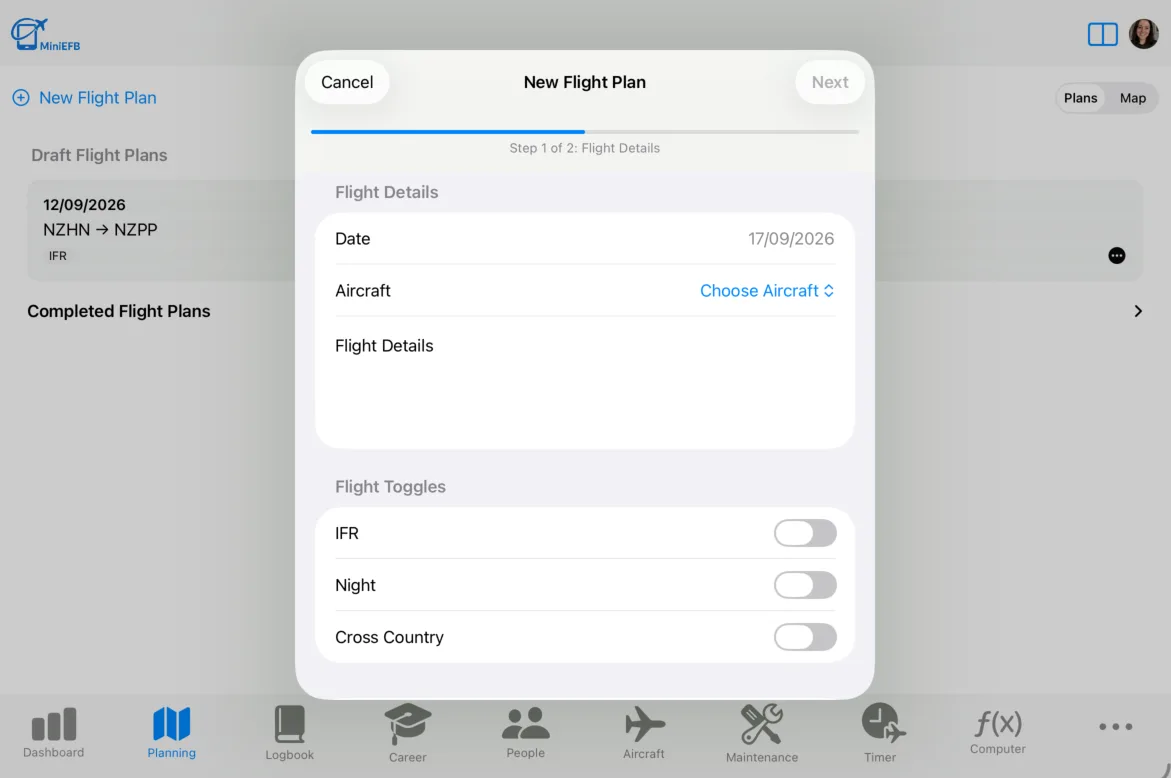
MiniEFB allows you to manage a flight right from the planning stage to the moment you save it to your logbook. To do this, we start by creating a new flight plan.
Before You Begin
Your flight planning experience will be much better if you completed at least the Fuel & Performance section of the aircraft you are using. MiniEFB automatically calculates headings, ETAs and estimated fuel usage for you, so make sure you complete your aircraft details to take advantage of these. See the article about aircraft management to learn more.
Creating a New Flight Plan
Start a new flight plan by clicking or tapping on the "New Flight Plan" button:

This opens the new flight plan modal:
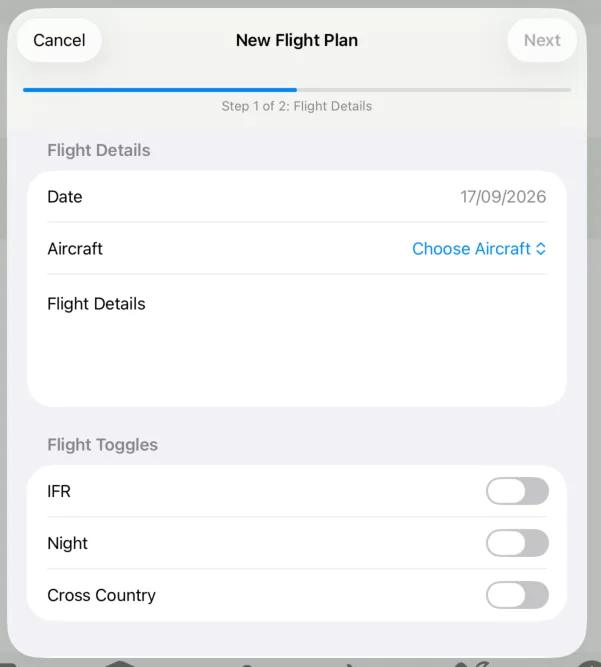
Start by selecting the date of the flight and which aircraft you plan on using. Then, complete the flight details section, describing what the intention of the flight is. If you are flying IFR, at night or performing a cross country flight, you can enable or disable the toggles as desired.
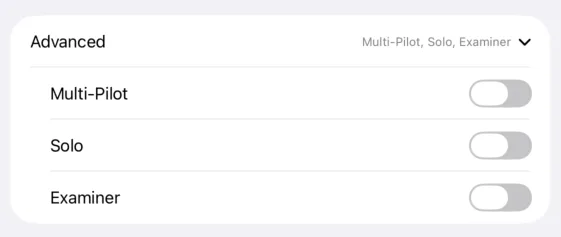
If you are flying as an examiner, solo or in a multi-crew operation, the advanced section has toggles you can enable or disable to ensure the flight is logged with those options recorded:
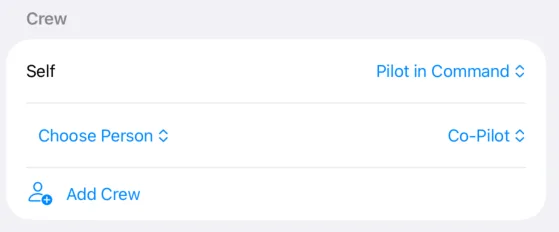
If you are flying with other people, add them in the crew section:
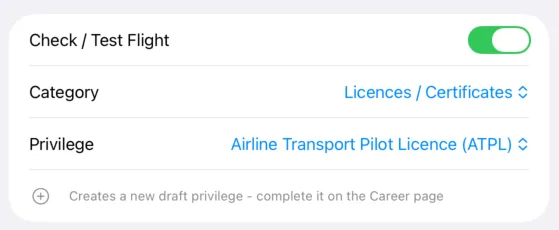
If your flight is a check flight or a test flight, you can select which privilege the flight updates or creates. For example, if this flight was a flight test for the issue of an Airline Transport Pilot License (ATPL), I would select the following:
Departure, Route and Arrival
On the next page, you can add in the route you plan on flying. You can either enter all the details about your flight using the various inputs, or go into map mode to add waypoints visually.
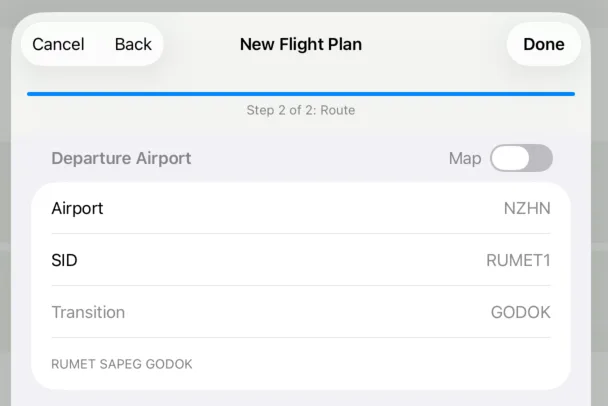
Below, we will add an IFR flight from Hamilton Airport (NZHN) to Tauranga Airport (NZTG). Since Hamilton is set as my home airport, it is already selected. In the screenshot, you can see I have selected the RUMET1 standard instrument departure (SID) and GODOK as the transition waypoint:
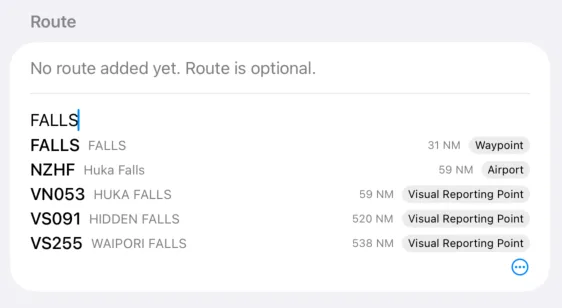
The only waypoint between NZHN and NZTG on this route is FALLS, so I add it in the route section. You can either tap or click the waypoint you want, or if it is the top one, simply press Return to add it to the route:
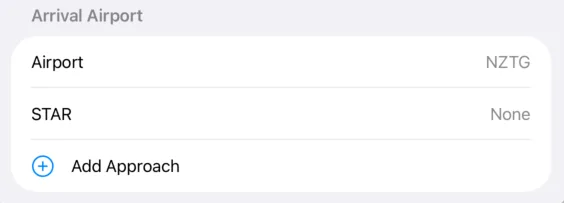
Next we add the arrival airport, here I have added NZTG:
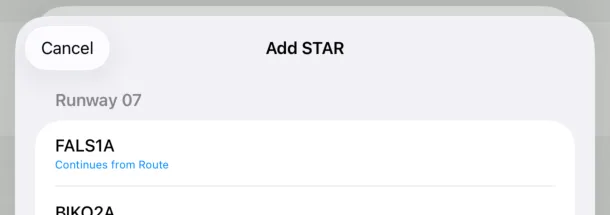
When a Standard Arrival (STAR) begins at the last waypoint in your route, it will be highlighted. Here, the FALLS1A arrival starts at FALLS and shows "Continues from Route":
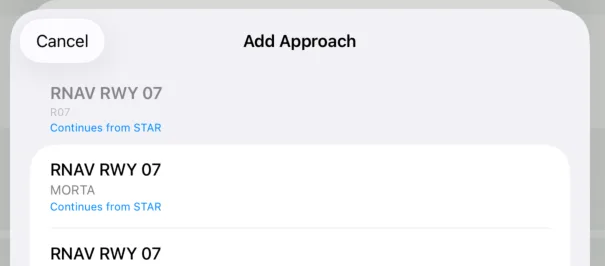
The same applies to approaches:
The Flight Plan Detail Page
Now that the flight plan has been created, you will be taken to the flight plan detail page:
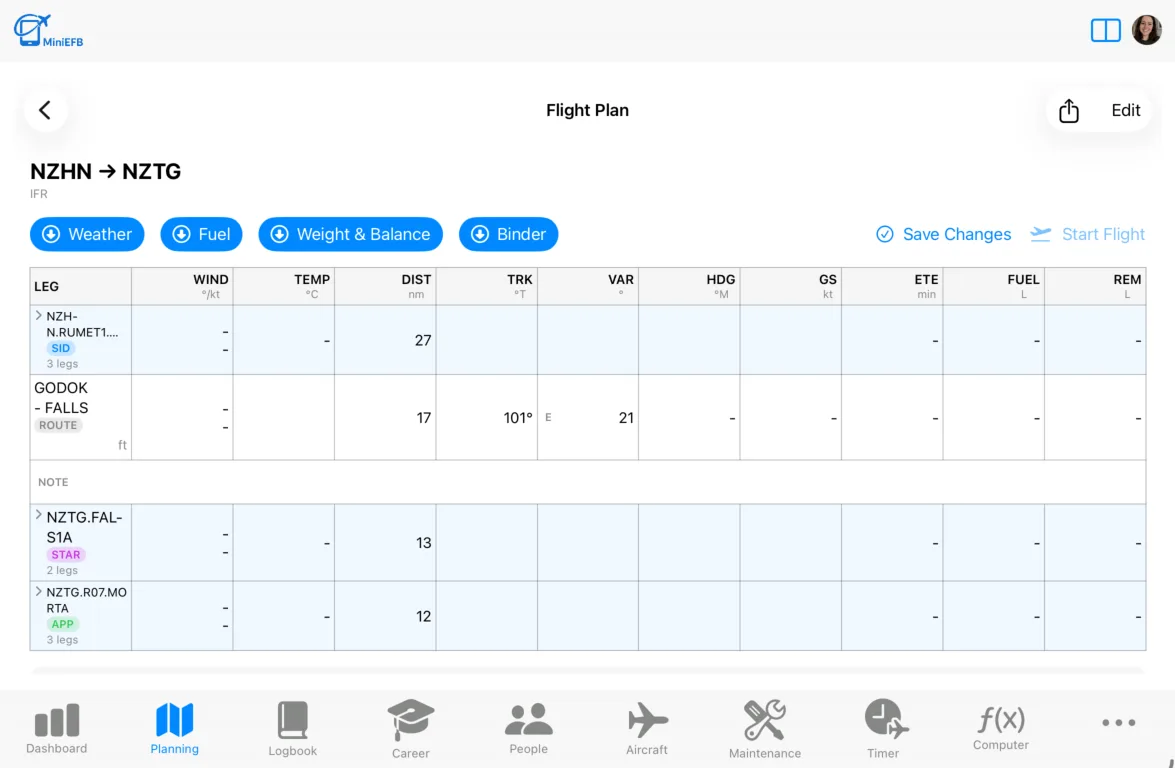
The flight plan details page contains the nav log and various tools to help you prepare for your flight.
Top-Right:

Share Button: Exports the flight log as a PDF that you can share or print
Edit Button: Allows you to edit the flight plan
Flight Plan, top bar:

Weather button: Launches the weather modal. Here, you will be provided with winds and temperatures aloft as well as METAR or TAF data if available.
Fuel button: Launches the fuel planning modal. Here, you can plan your fuel for the flight and set up tank switch reminders, if desired.
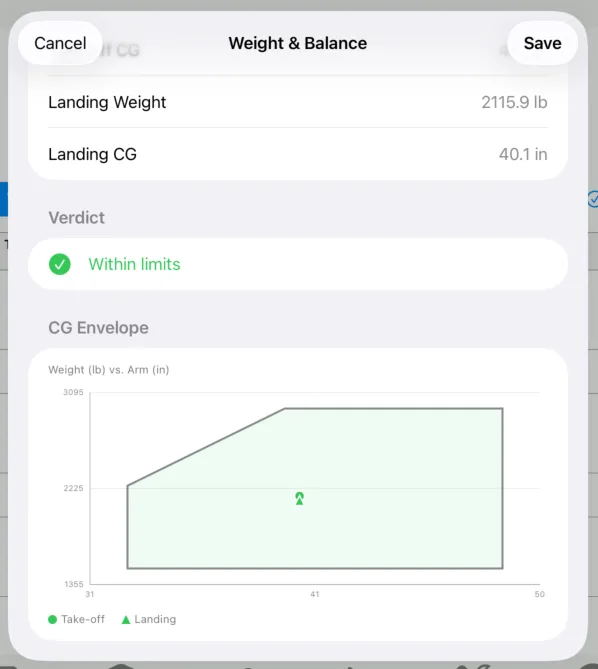
Weight & Balance button: Launches the weight and balance modal, allowing you to calculate and verify the weight and balance of the aircraft. Note: Requires that weight and balance data have been entered for the aircraft being used.
Binder button: If you have uploaded PDFs to your Documents folders (E.g. approach plates), you can add them to a flight binder to easily find them while in the air.
Save Changes button: Saves the changes to the flight plan without starting the flight.
Start Flight button: This makes the plan active and takes you to the active flight page. This also starts the flight timer that will automatically calculate flight duration.
Flight Log Table:
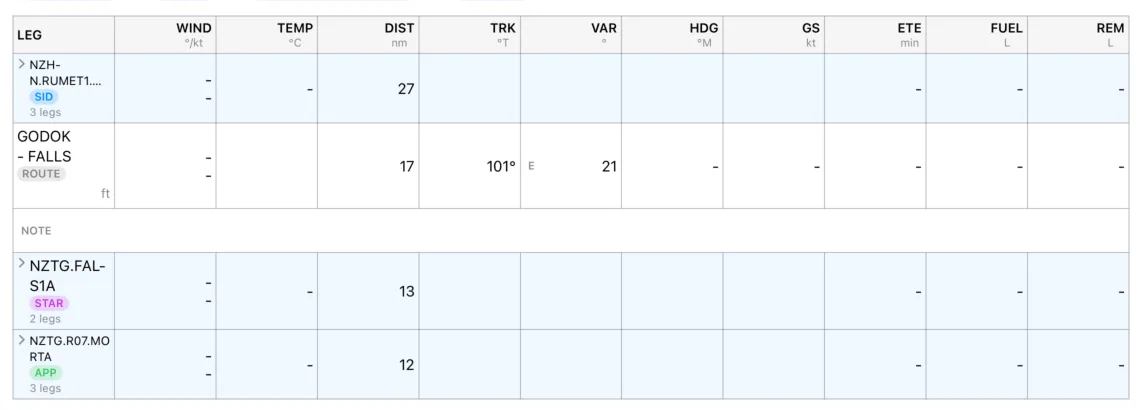
The flight log table is similar to ones you may have used in the past. As you complete the flight plan, this table will fill with data.
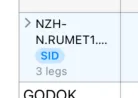
You can expand procedures such as SIDs, STARs and approaches, to see the individual legs of each procedure. This is indicated by the ">" icon:
Completing The Flight Plan
Adding Winds and Temperatures
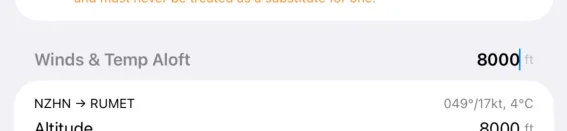
In the top-right section of the modal, just above the route legs, you can set your cruise altitude for all route segments:
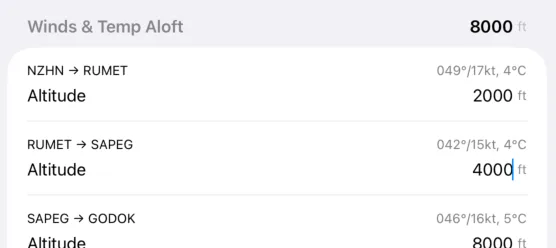
You can also set individual altitudes for different legs, but tapping or clicking on the altitude in the table. For example, you might opt to choose an altitude 1/2 way for climbing or descending legs:
Once all altitudes are set, click or tap on the "Refresh" button to get winds and temperatures at the various altitudes.
Finally, click or tap on "Fill Flight Plan" to add winds and temperature data to the flight log.
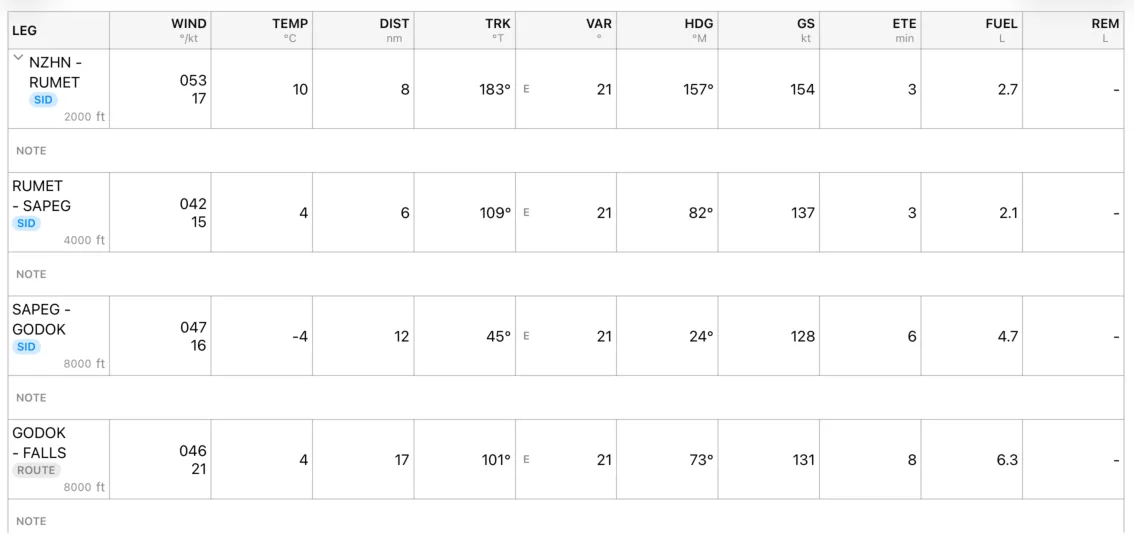
You will note several other columns calculate automatically when this data is added and the "Weather" button turns green to show this step has been completed:
Fuel Calculations
Provided you have configured the aircraft you are using with fuel and performance data, you will be able to set the usable fuel quantities and perform fuel calculations based on your route.
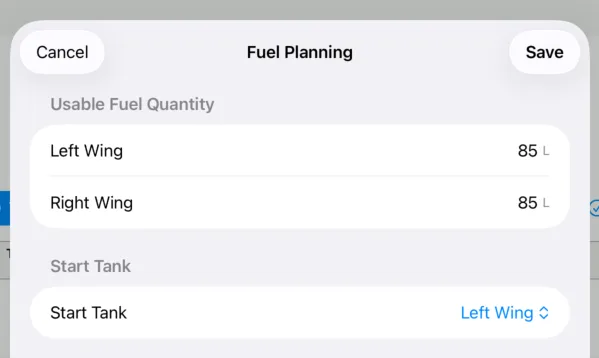
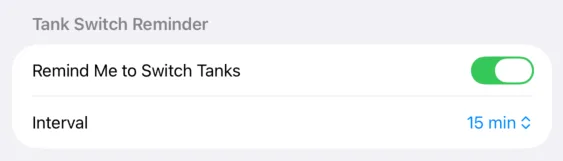
If you are flying an aircraft that requires switching tanks at regular intervals, you can enable tank switch reminders, and set the frequency at which you would like to be reminded:
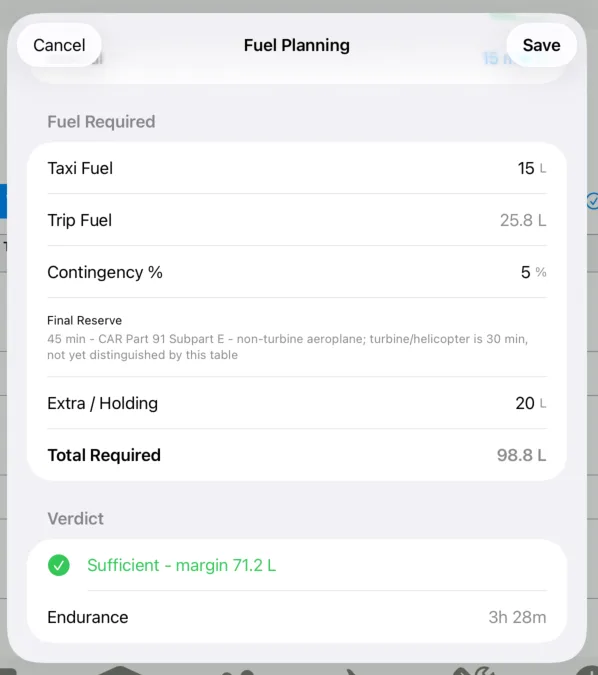
At the bottom of the fuel planning modal you will find an assessment of your fuel situation and endurance. Click or tap "Save" to add fuel data to the flight log. You will note the fuel columns populating and the "Fuel" button turning green:
Calculating Weight & Balance (Optional)
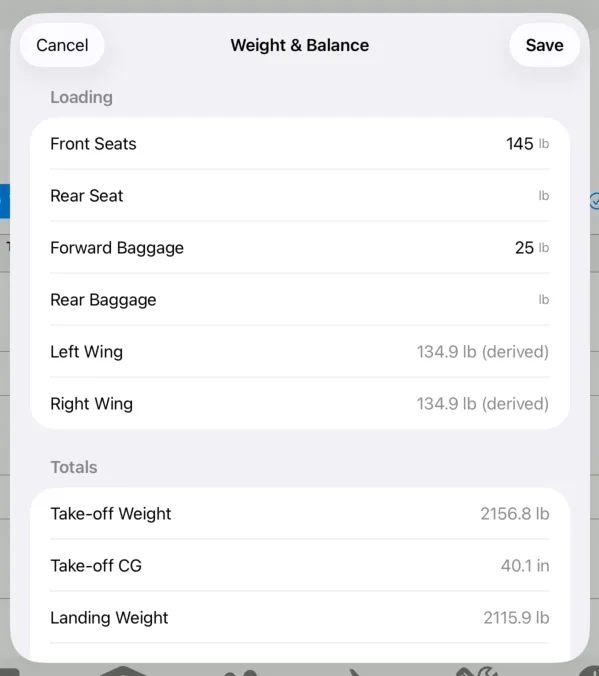
Clicking or tapping on the "Weight & Balance" button will launch the weight and balance modal. Here, provided you have configured weight and balance data for the aircraft being used, you will be able to add your aircraft loading and see whether you are within limits. Fuel weight is calculated automatically based on the data entered in the fuel calculations step.
Binder (Optional)
Provided you have uploaded PDF documents to your documents folder, you can pin documents to a flight binder, so you can easily find them later from the documents page.
Tap or click on "Pin documents" then browse the folders to find the files you would like to pin:
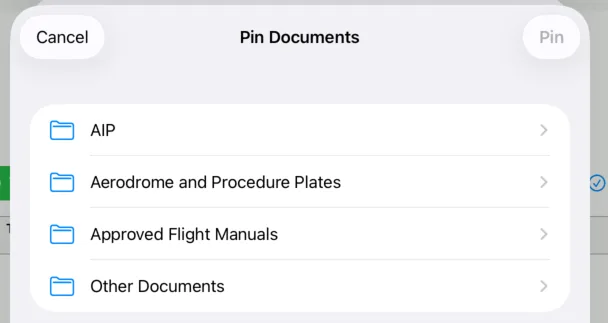
You can select multiple documents at the same time
Starting The Flight
Once both wind and fuel calculations have been completed, the "Start Flight" button will be active:

Tap this button to start the flight and make the plan active.