
Digital Pilot Logbook Overview
September 9, 2026The digital pilot logbook is one of the core features of MiniEFB. You dashboard and career rely on having your digital pilot logbook in MiniEFB. On this page, you will learn about the digital logbook and its features.
The Logbook Page
The logbook page itself contains features that lets you add, import and manage your logged flights.
The Top Bar:

From left to right and below:
Add Flight button: This opens the add flight process, so you can add a new flight to your logbook.
Import Flights button: This launches the import feature, so you can import your existing digital logbook into MiniEFB.
Filters button: You can filter you logbook to only show specific flights.
Search bar: Use this to search for a specific flight in your logbook.
Flight Cards
Below the top bar you will find your flights:
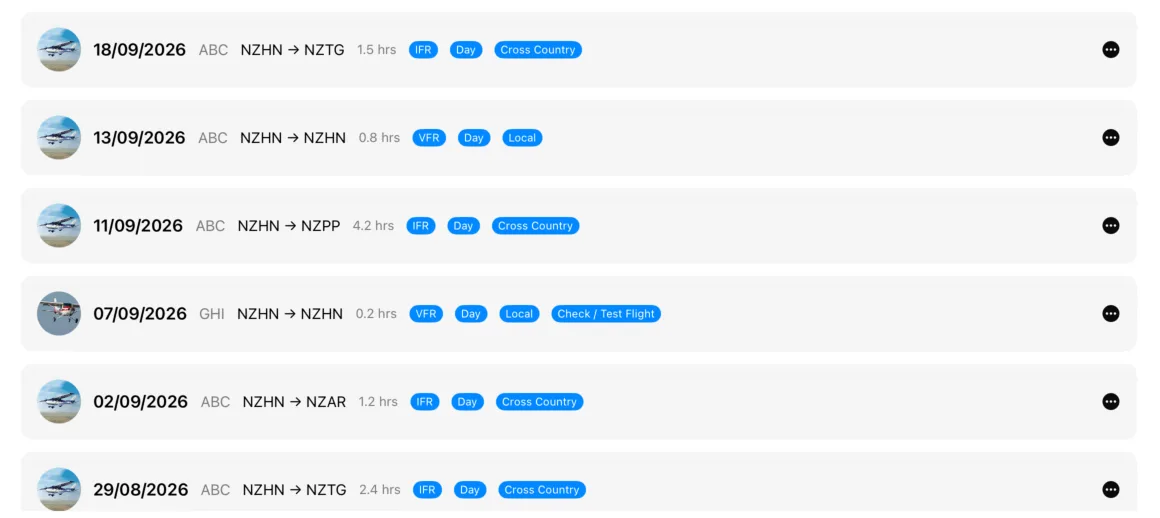
Tapping on the 3 dot icon on the right hand side, opens the options menu:
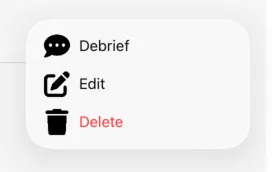
Here you can add a flight debrief, edit the flight, or delete it.
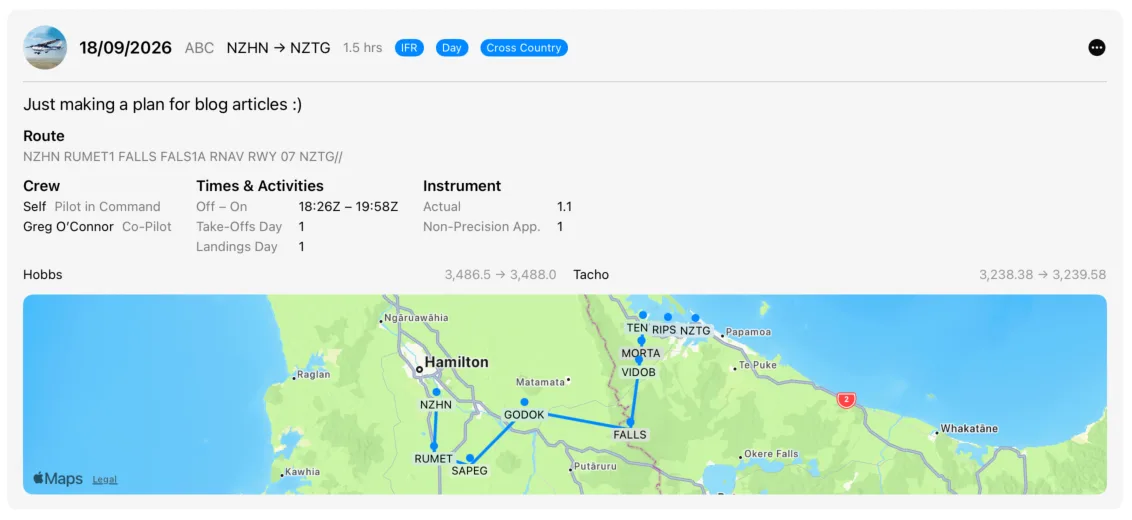
You can tap on a flight to open the flight detail view:
Flight Debrief
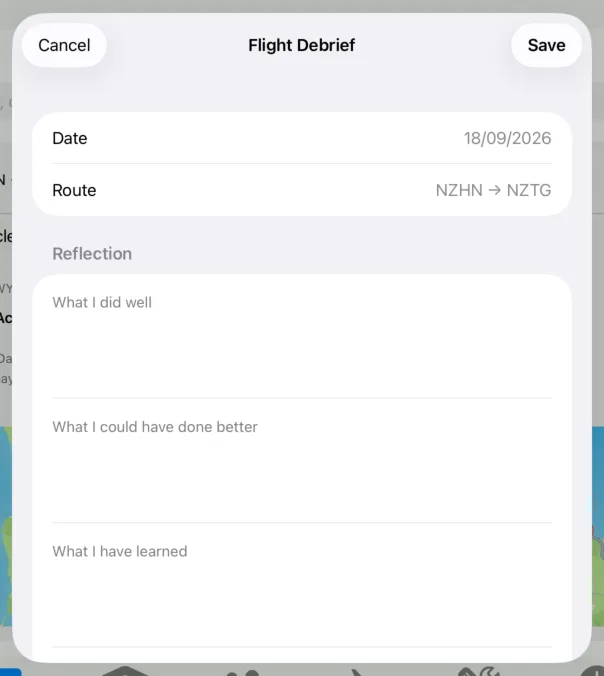
When you select the "Debrief" option from the options menu, you will be presented with the Flight Debrief modal. Here you can record some of the things you learnt from the flight:
Adding a New Flight
Step 1: Flight Details
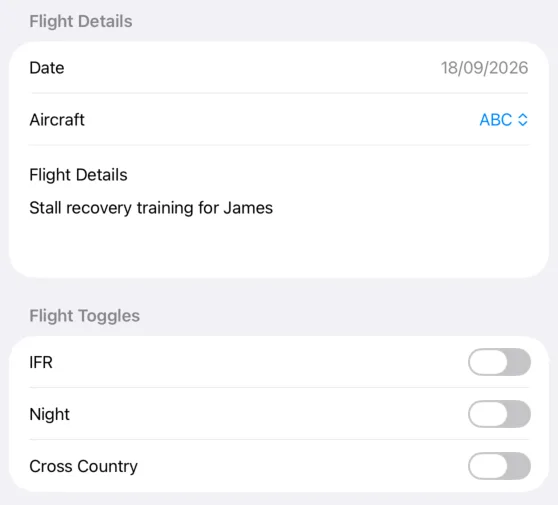
Step 1 is to add the basic details of the flight, starting with the date, aircraft and flight description:
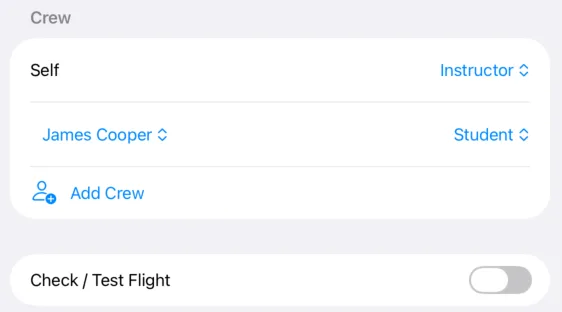
Next, add any crew members, if any. For this example, I'll select James, a crew member I am connected to (learn more in the People & Crew Overview article):
If needed, you can add departure and arrival times, or toggle solo, examiner or multi-crew options in the "Advanced" section:

Step 2: Route
Next, add the route you flew. This is optional:
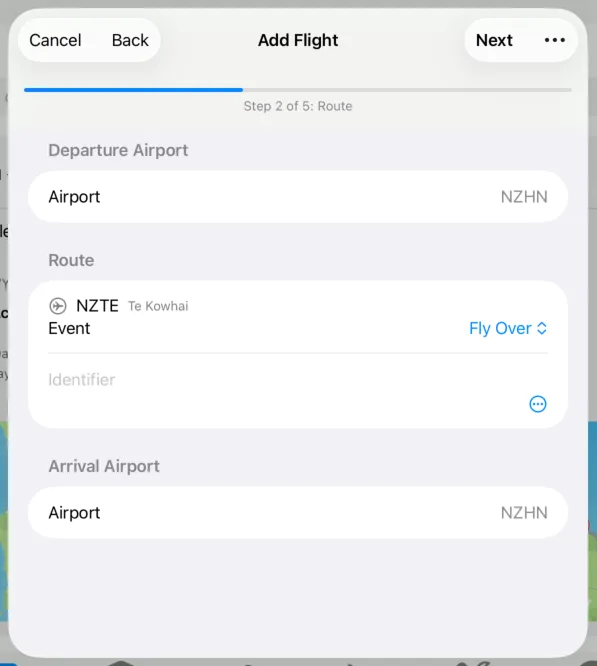
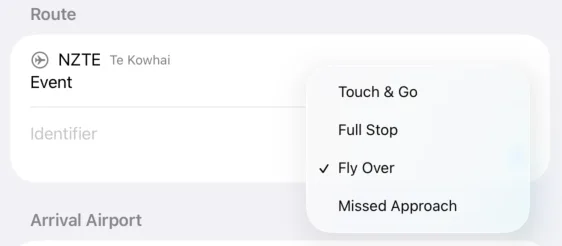
For this example, we will say that we flew to the Te Kowhai airfield to do some touch and go's. When you add an airport as a waypoint, you can tell the app what you did there
Step 3: Hours & Activities
Next, add the flight time and take-offs and landings:
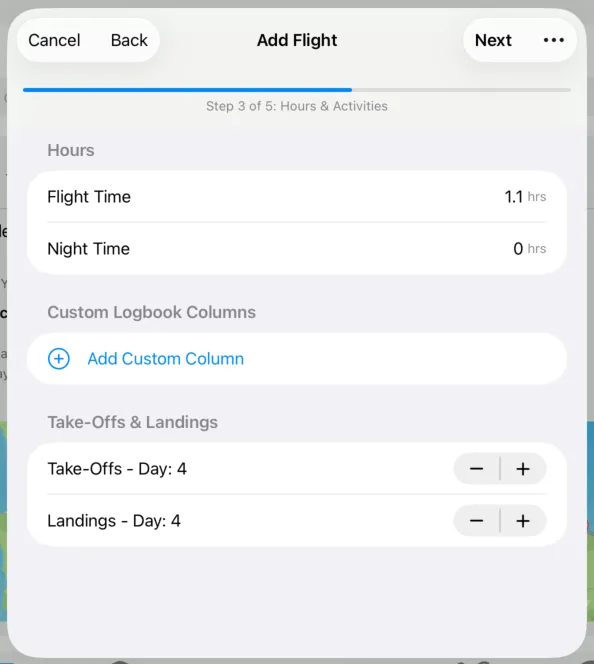
If you are tracking hours not covered in the logbook already, you can create your own custom logbook columns:
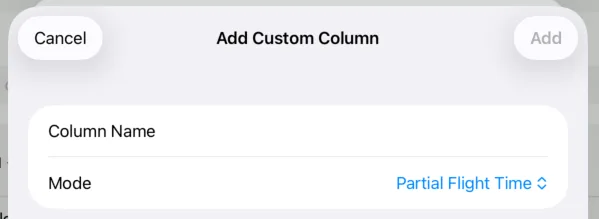
When adding custom logbook columns you can choose whether it should use partial or full flight time:
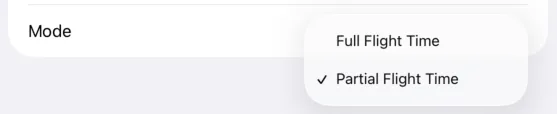
For example, an agricultural pilot might want to track the exact hours they spend spraying a field, so they would use "Partial Flight Time" so they can enter their own value. A PPL holder performing CPL cross country training might use the Full Flight Time mode instead, to track how many hours they spent doing that specific training.
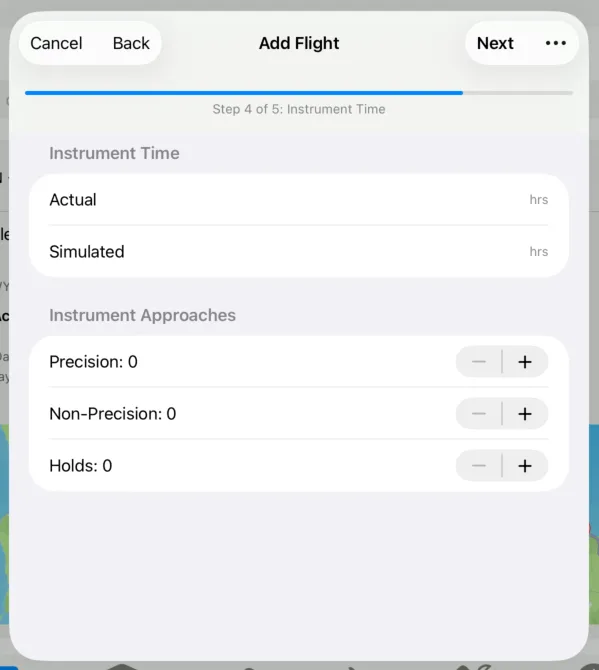
Step 4: Instrument Time
The next step is to add any instrument time, approaches or holds that were performed during the flight:
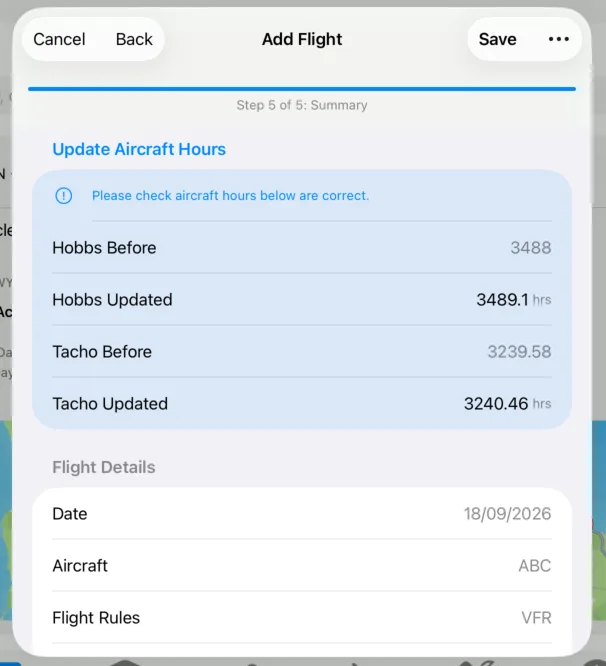
Step 5: Summary
The final step is to verify aircraft hours and flight details, then saving the flight if all is correct:
Importing Flights
See the article "Importing Existing Digital Logbooks via CSV" for more.