
Getting Around: Navigating the MiniEFB App
September 6, 2026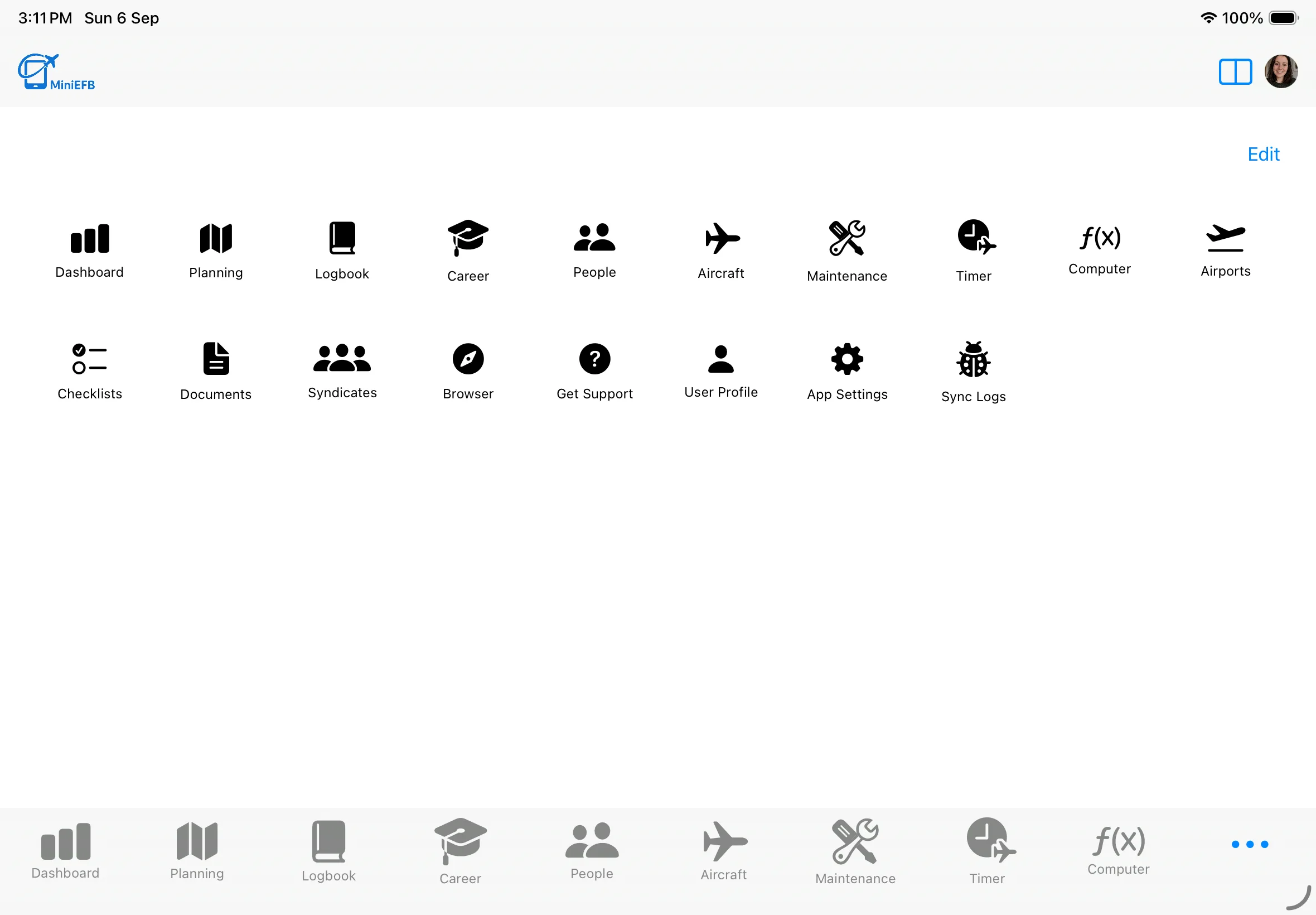
MiniEFB has an intuitive navigation structure, with a navigation bar at the bottom of the app and a customisable menu which you can access at any time. Every major feature you are looking for can be found by using the navigation bar and the menu. When you customise the menu, you will also change the order of icons in the bottom navigation bar. On MacOS, the entire menu is available at all times on the left-hand side of the application.
The Bottom Navigation Bar (iOS)
While using the iOS app, either on your iPhone or an iPad, you will see the bottom navigation bar at, well, the bottom:

You will notice various icons which lets you visit various pages such as the Dashboard (shown as selected in blue above), Planning, Logbook and so on. You can customise this par and rearrange the icons that appear by customising the menu. You can open the menu by tapping on the 3 dots (...) on the right hand side of the bottom navigation bar.
The Customisable Menu
When the app menu opens, you will see icons for all pages and features the app has. You can rearrange these icons, so the app features you use the most will appear first. Depending on the device you are on, the first few icons will show in the bottom navigation bar. Lets say I use Digital Checklists a lot and I want to make it easier to get to.
First, with the menu open, tap on the "Edit" button in the top right:
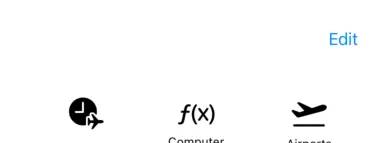
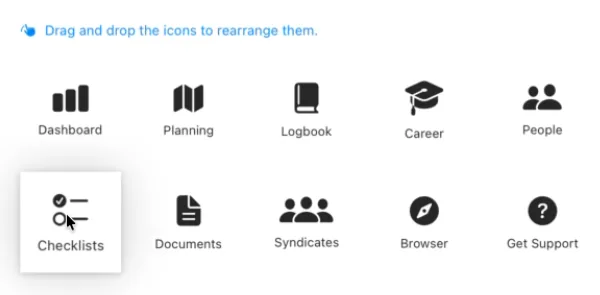
You will know you are in edit mode when the drag and drop message appears. Simply tap and hold the icon you would like to move, and it should highlight as shown below:
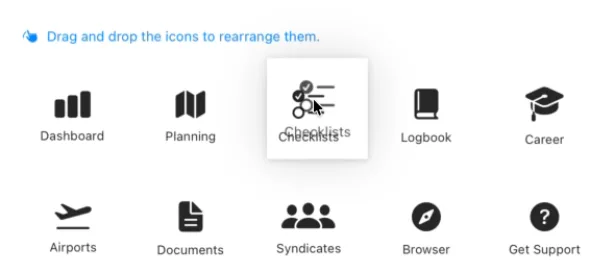
Then, drag it to where you want it to go and release. You will see the other icons move out of the way and the icon you are moving will appear there instead:
Notice now the Checklists icon is now the third icon in my bottom navigation bar:

Split Screen Functionality
In the top-right of the app, just to the left of your profile picture, you will find the split screen toggle:
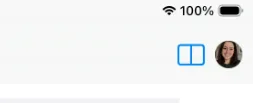
This allows you to toggle split screen on or off, so you can have two pages open at the same time:
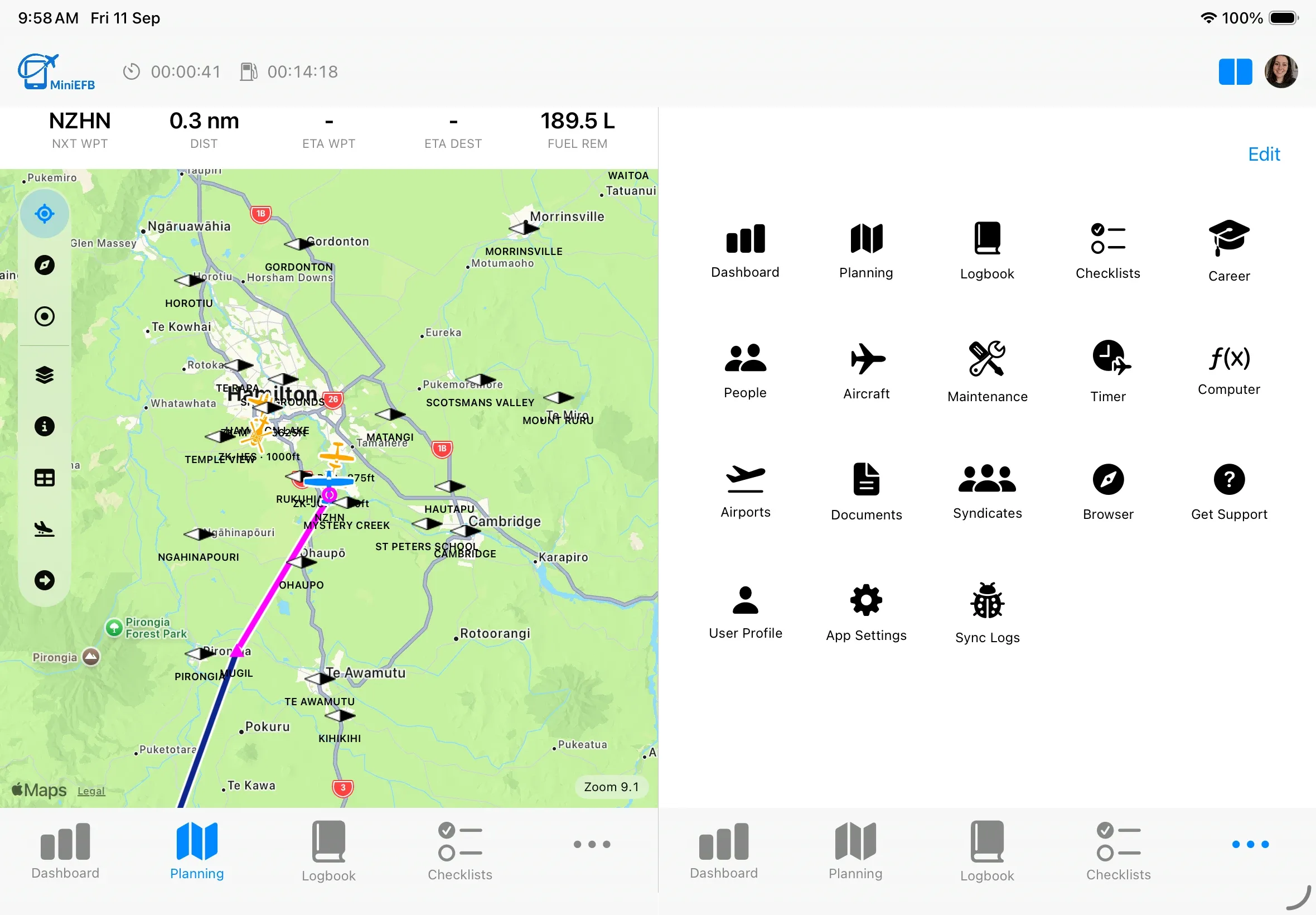
The bottom navigation bar and the menu duplicates, so you can easily change what is shown in each half of the screen.