
In Flight: Flying with an Active Flight Plan
September 17, 2026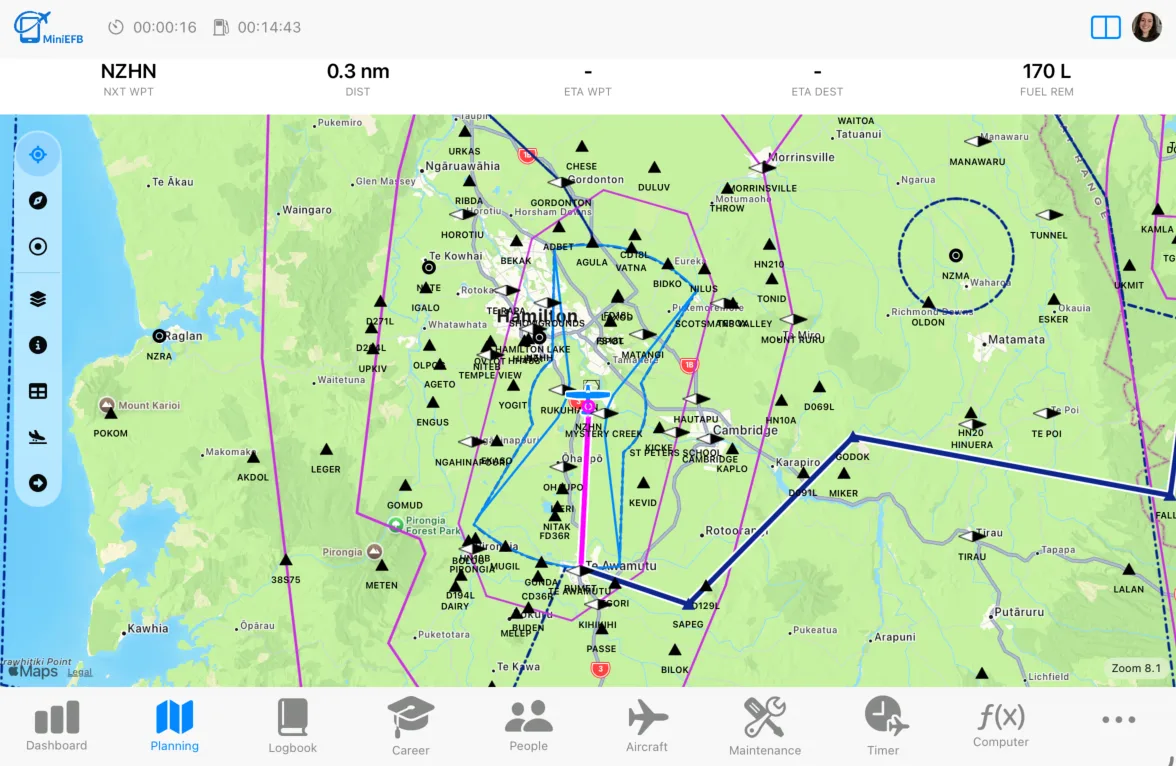
As soon as you start a new flight you will be taken to the active flight page.
Active Flight Page Features
App Header
In the MiniEFB app header, you will notice the flight timer and fuel tank switch timer (if enabled):

Tapping on this will open a modal where you can manage your timers (explained later in this article).
Just below the header are some useful information about your next waypoint and estimated fuel remaining:

Moving Map
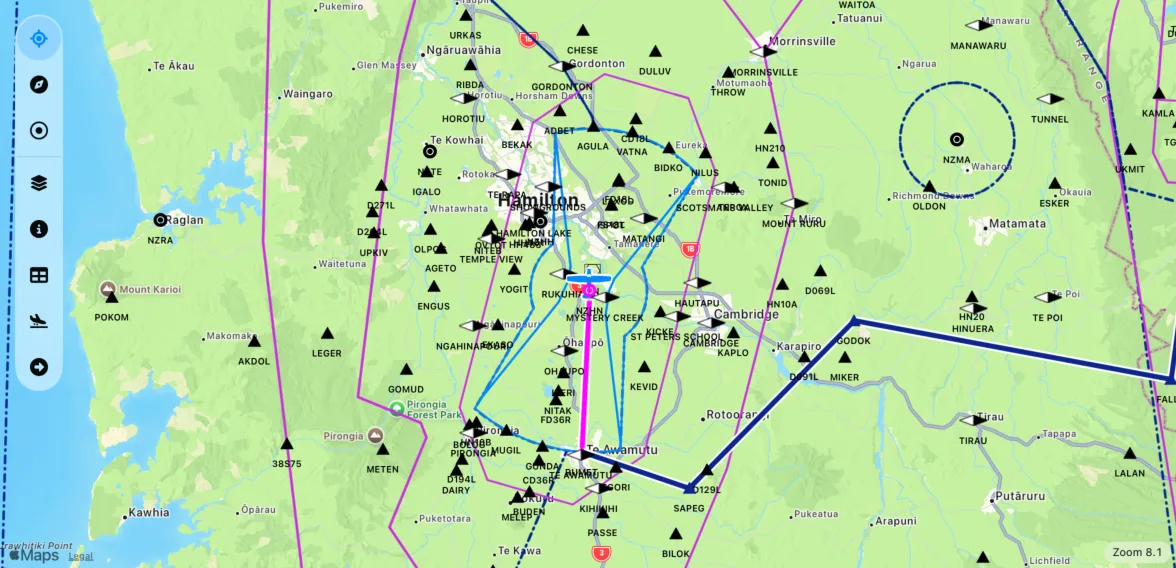
This is the same moving map as explained in the "Flight Planning & Moving Map article. However, there are some additional details. For example, your flight route is shown, with the currently active left highlighted in magenta.
In the pill menu on the left hand side, there are 3 additional icons:
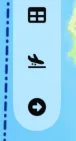
From top to bottom:
Flight Log: Tapping this will take you to your flight log table. The active leg is highlighted in the table.
Top of Descent: This opens a top of descent calculator, so you can calculate when you should start your descent at your destination.
Divert: This launches the divert modal which gives you information about the nearest airports, you can filter airports that have instrument approaches, if needed.
Flight & IMC Timers
While a flight plan is active, the flight timer will be running. It will stop when you end the flight. By tapping on the timer in the app header, you will open the flight management modal. At the top you will find the flight time and an IMC timer, which you can start and pause as you enter or exit instrument meteorological conditions:
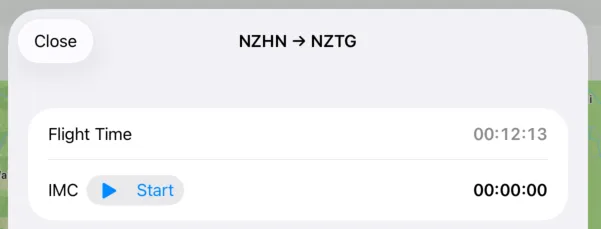
When you end the flight, the IMC time will automatically be saved as "Actual" instrument time.
Fuel Tank Switching & Reminders
You can set reminders when it is time to switch fuel tanks. You can choose what interval this happens at while creating a new flight plan.
By tapping on the timers in the app header, you will open the flight management modal. In this modal, you will find the fuel section:
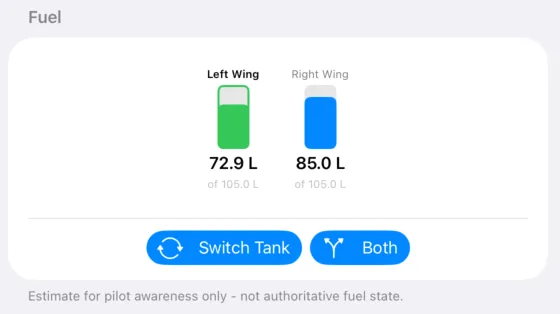
The currently selected tank is highlighted in green and you will notice the quantity slowly going down as fuel is used from that tank.
IMPORTANT: Remember that this app does NOT know what your actual fuel state is! This feature uses the average burn rate you entered when creating the aircraft being used and the flight timer. It is always the pilot's responsibility to ensure they use on board fuel indicators and visual checks to ensure they have enough fuel.
When it is time to switch tanks, you will receive a push notification. You can enable or disable this in the app settings:
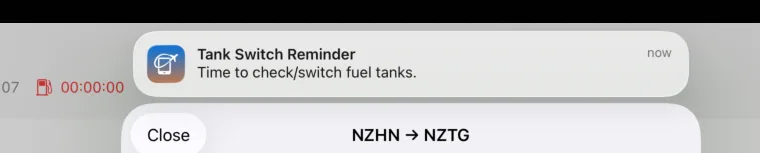
The fuel tank switch timer will also flash red:

Simply tap the "Switch Tank" button once you have switched fuel tanks, to enable the other tank and reset the timer:
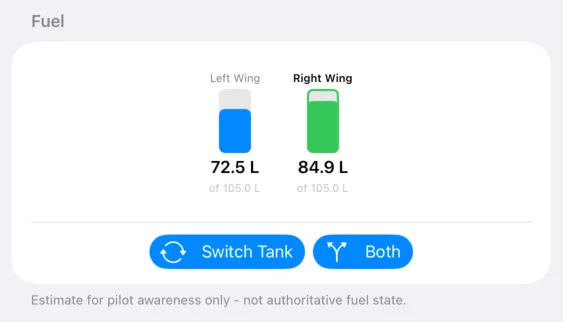
Top of Descent & Diverting
To calculate your top of descent, tap on the Top of Descent icon to open the calculator:

On the calculator modal, you simply add your cruising altitude, target waypoint, target altitude, target rate of descent and ground speed:
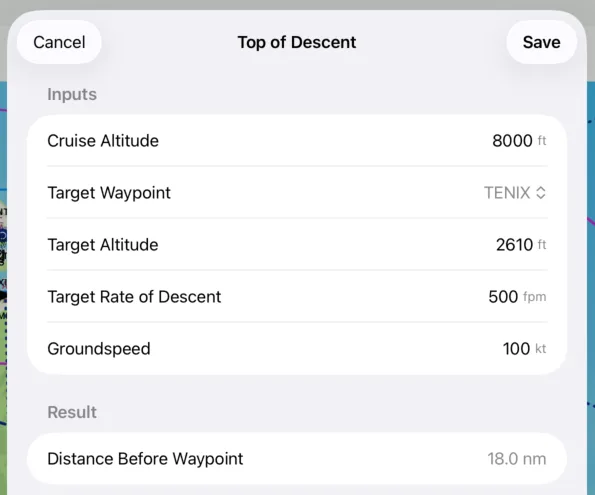
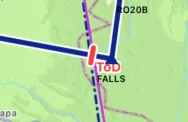
Once saved, a red "ToD" line will appear on your route, showing the location where you should start your descent to reach your target altitude at the target waypoint:
Ending The Flight
Once you have landed and you have powered down the aircraft, you can end the flight by clicking into the flight management modal by tapping the timer in the app header. At the bottom of this, you will see the End Flight button:
This will end all timers and take you to the "Save Flight" modal, where we will save this flight to your logbook:
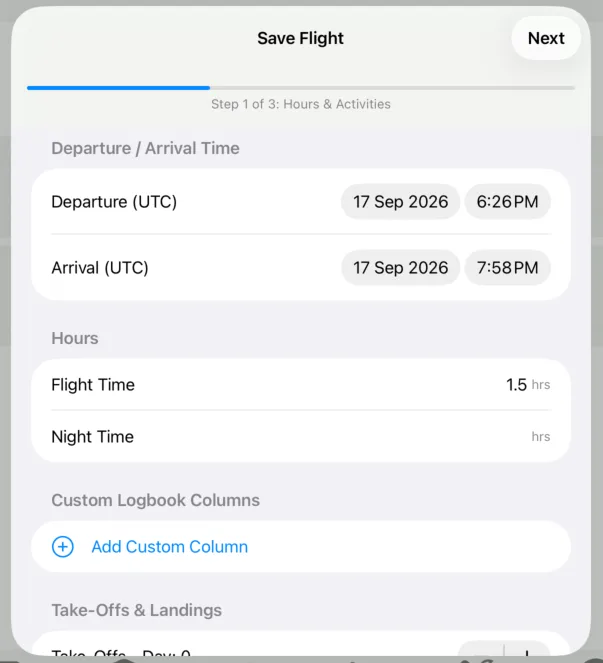
You may adjust the departure and arrival times, or the flight time, in case the timer didn't perfectly match the flight time. If you are tracking hours for something not usually in the logbook, you can create your own custom logbook columns. This is useful for pilots tracking hours against certain types of training, or maybe spray time for agricultural pilots.
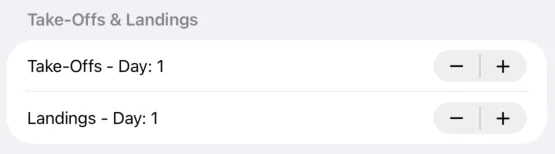
Next, record how many take offs and landings you performed during the flight:
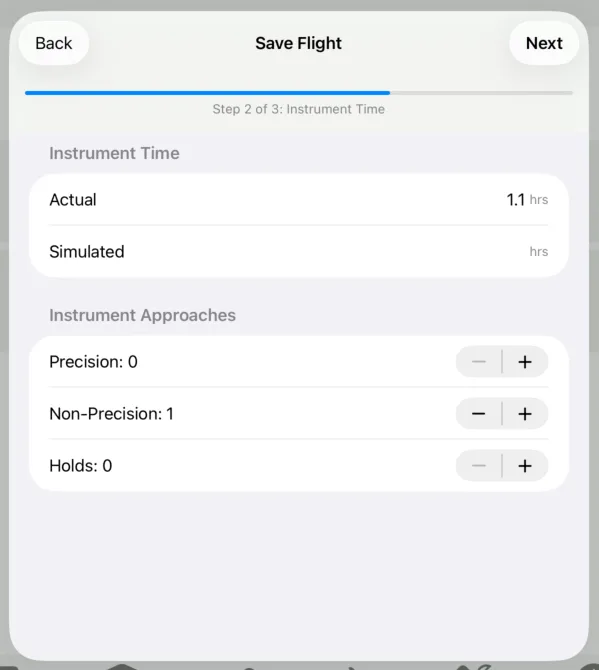
On the next page, enter your instrument flying details. If you used the IMC timer during the flight, it will automatically populate the Actual Instrument Time field. If you added procedures to your flight plan, they will automatically show on this page as well:
The final step is to confirm the details of the flight and to ensure aircraft hours are accurate (if you are tracking hours for the aircraft used):
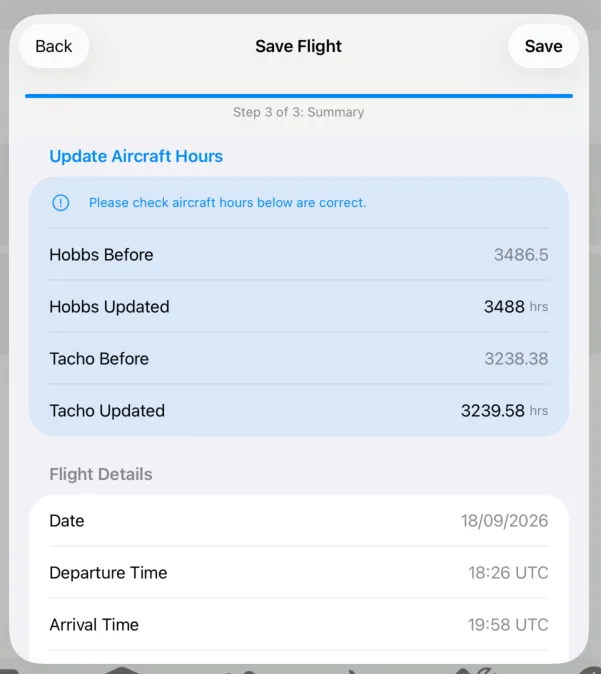
To save the flight to your logbook, click on "Save".